I have 285 passwords and I don’t remember signing up for most of them. While migrating my email away from Gmail, I also started eyeing the Proton Pass solution.
I’ve been using 1Password since 2019 when I realised I couldn’t keep track anymore. At the time I had most of them in my browser, Chrome, just by clicking on the popup whenever it appeared. But I didn’t use Chrome on all my devices and it also made it harder for me to try different browsers. So even though it worked fairly well, I still had to scroll through the list often. I adopted 1Password to solve this and also to help my family keep track of their logins.
I think this switch is one of the better ones I’ve done, from something that bothered me a lot and I thought a lot of how to solve, for years. I adopted a solution that worked. No more issues forgetting a password, no more issues having to scroll through lists to type it on another device and so on. It just worked. Years of headache disappeared with that decision. It’s one of those things where there’s a “before” and an “after” when adopting this solution for me.
Moving on now, as Proton Pass added its service on top of the package I already had, there’s no reason to pay extra for 1Password anymore, so I thought I’d give it a try. The migration itself was seamless; export and then import into Proton Pass. My main issue was the fear to remove something that had worked so well and I decided to run both of them for a bit, just until I saw it working.
At my desktop I also made a switch from Vivaldi to Firefox at the same time, so there I only had to install one plugin and that’s it. On my phone however, the decision wasn’t as easy. Rather quickly I ran into new problems; should I add new passwords to one or both? I realised that I probably have to remove 1Password to give Proton Pass a fair chance as a replacement.
While doing all this, I was also looking at how many passwords I had, I noted down when I adopted 1Password that I had 74 passwords in Chrome at the time. 1Password shows how I add new ones month by month in its GUI, so it’s rather easy to get an overview by scrolling through the list, however, it’s only an overview and not a very visual one. Thankfully, they also have a CLI that lets me extract the dates, so it was easy to plot them for a better overview.
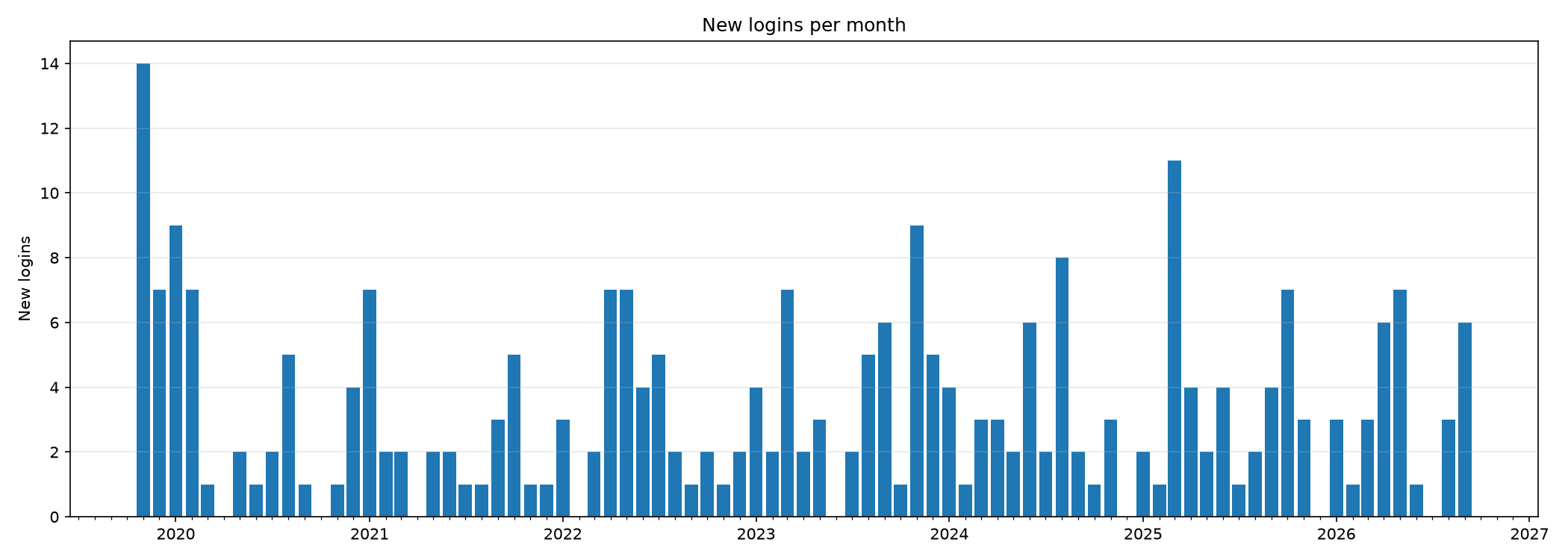
Since November 2019 I’ve added something almost every month, the initial columns are the migration to 1Password, I didn’t import all. I wanted to clear some of those 74 accounts, so I only added items as I used them (and it wasn’t that many at the time given!).
First few months were 14+7+8+7 added, these are my high priority ones most likely, the services I used daily or at least fairly often. Naturally they entered the password manager rapidly after adopting it. Then it faded quickly and the pace was 1-2 for several months. Over time, it looks pretty much the same, 1-2 most often, sometimes a few more, the average was 3.4 added per month.
Next interesting part is the number of accounts, somewhere along the way I realised that it became quite a lot, when I look today: a total of 285 over 84 months.
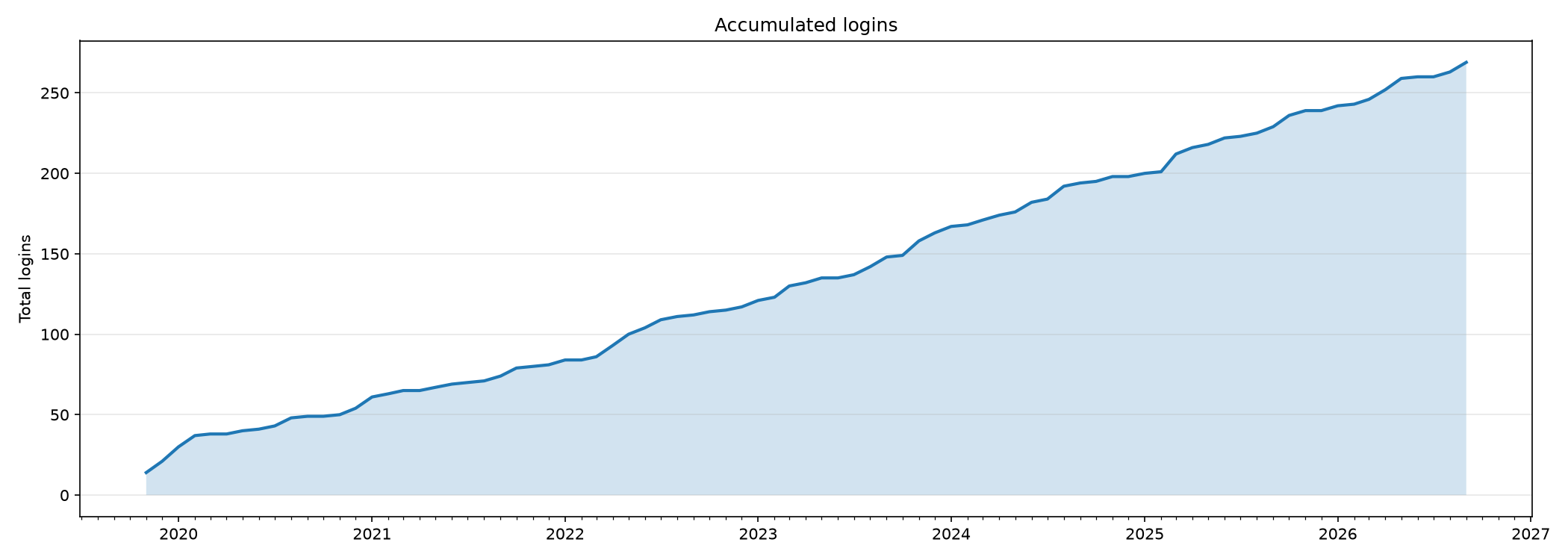
I have deleted a few accounts over the years, but they’re really few. Most of the time I am like everyone else and simply leave most accounts alone after use. The difference when not using a password manager is that you can forget you ever had one, but the manager doesn’t let you do that, so here we are; 285 accounts. Now checking (briefly) against my mail, I found 6 emails with notifications that “your account will be deleted unless…”, so it seems companies are not very eager to remove them either.
Does it matter? Probably not. But I’ll start deleting some anyway now that I am aware of it; I’ll take my time as I simply will scroll through the list, starting with the older ones that most likely aren’t used anymore. The issue now is choosing which manager to remove them from. So far, Proton Pass seems to be doing the job, so I think I’ll stick with that one.